


In order to use the PayPal Commerce Platform gateway on your site, you will need to register an app at the PayPal Developer Portal and get your API credentials.
Register your app at the PayPal Developer Portal
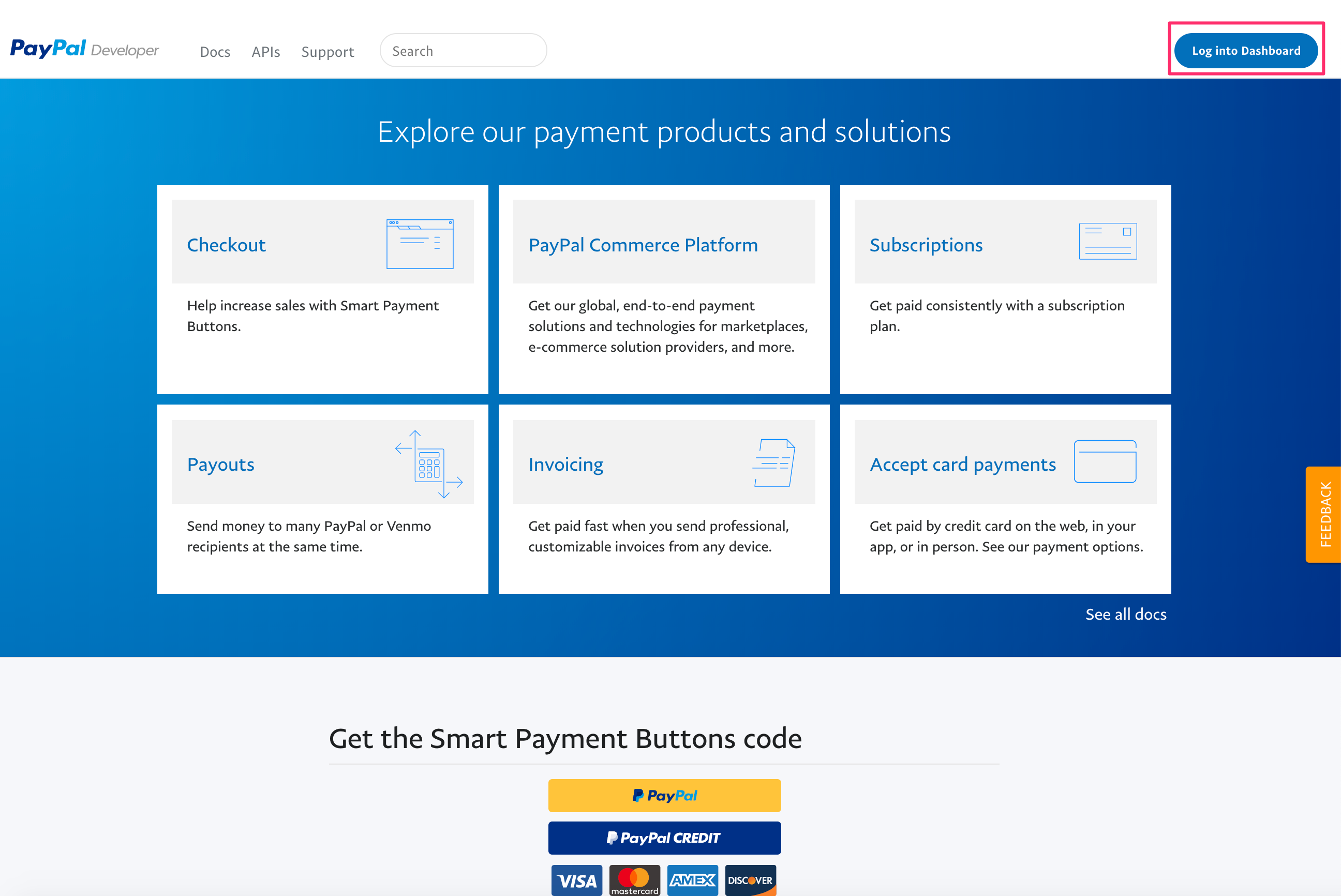
Go to the PayPal Developer Portal and log in with your PayPal credentials. You can sign up for a new account if you don't already have one.
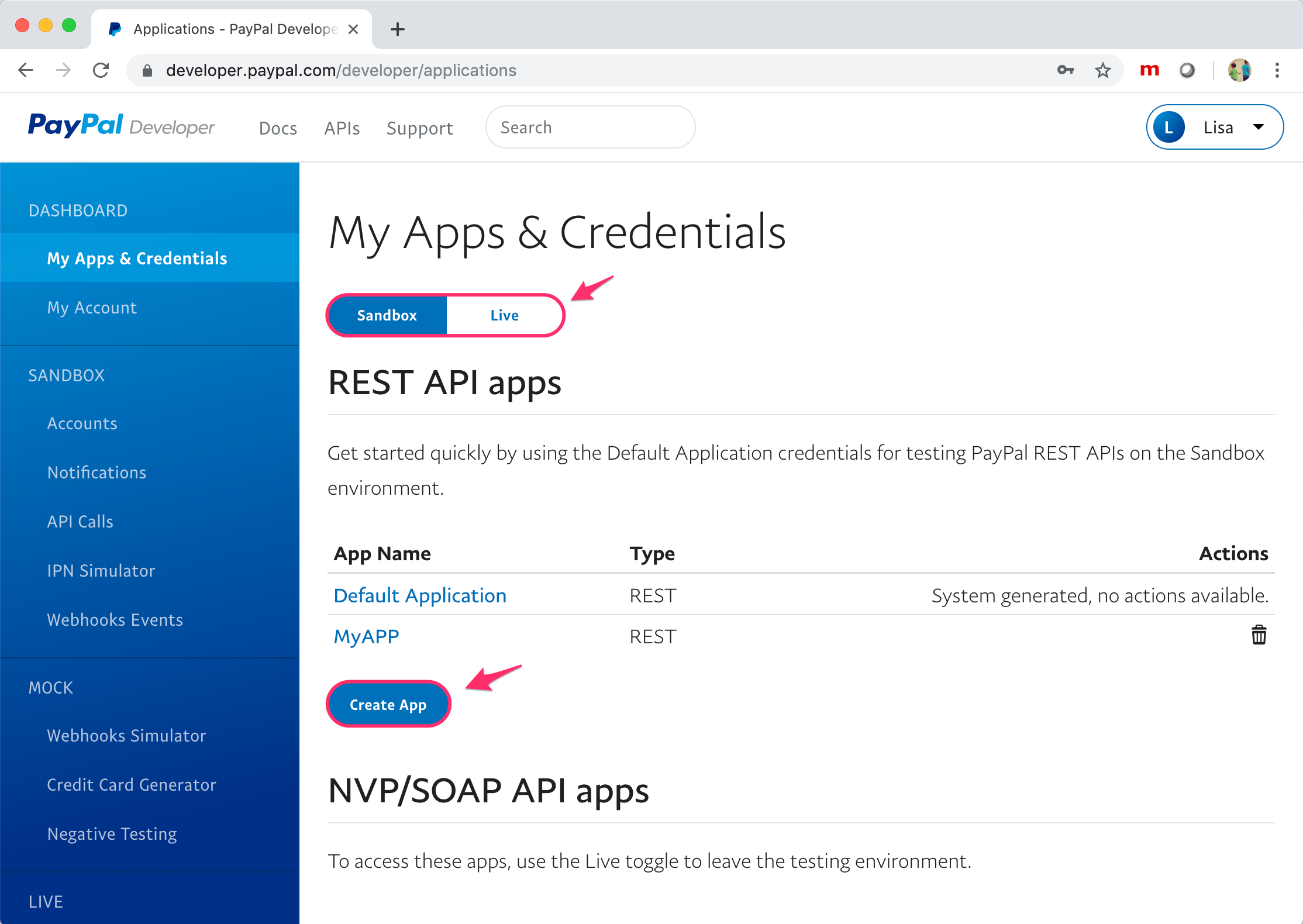
You will be directed to the My Apps & Credentials page. In the REST API Apps section, click Create App.
Please note in the screenshot below that you can also get a set of "Live" credentials by switching to the "Live" option and then creating a new App.
On the Create New App page, provide a value for App Name and click Create App.

Get your PayPal client ID and secret
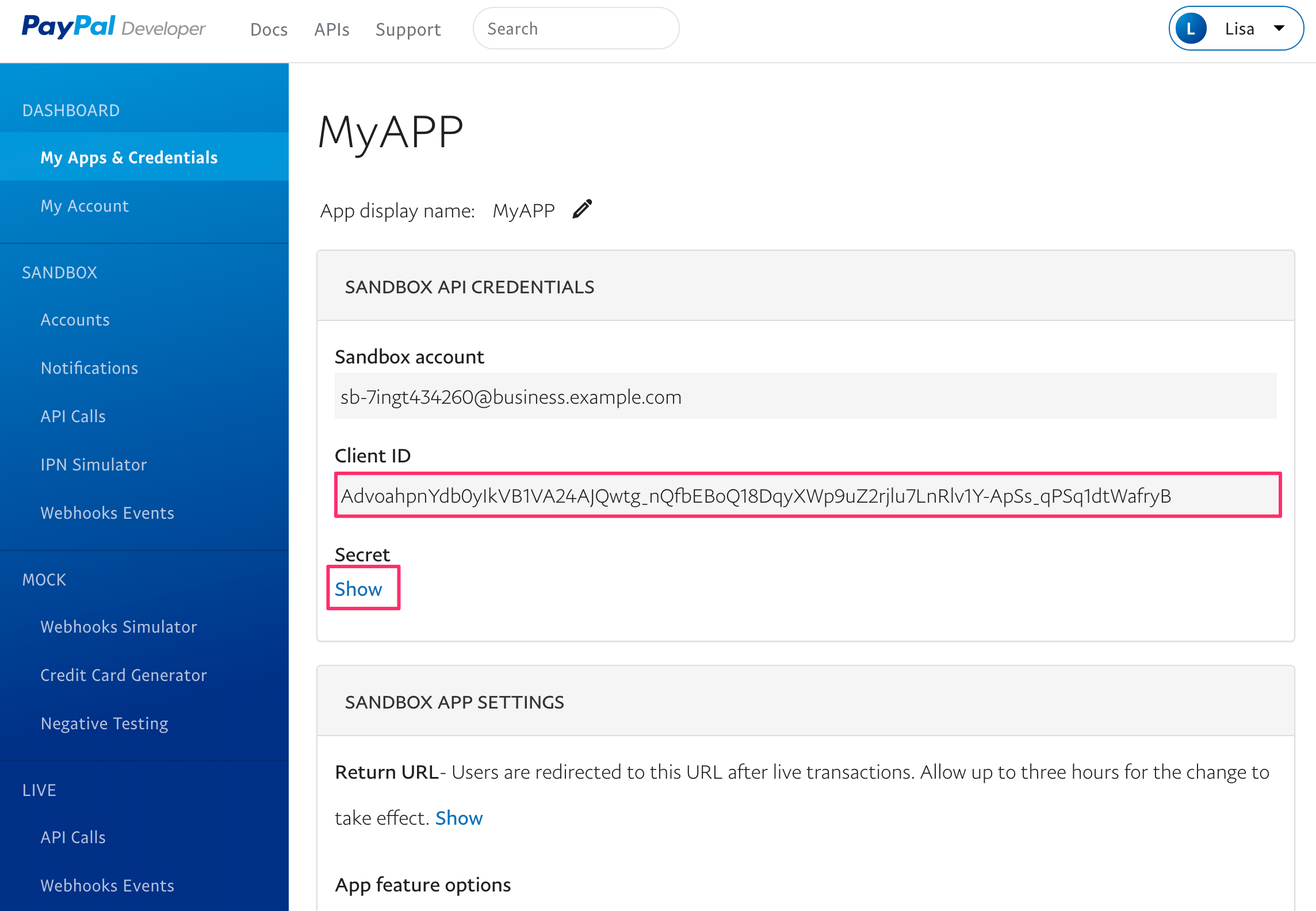
Once PayPal has created your app, you will be shown the API credentials for this particular application. The Secret value is initially hidden.
Configure your payment gateway plugin in Drupal Commerce.
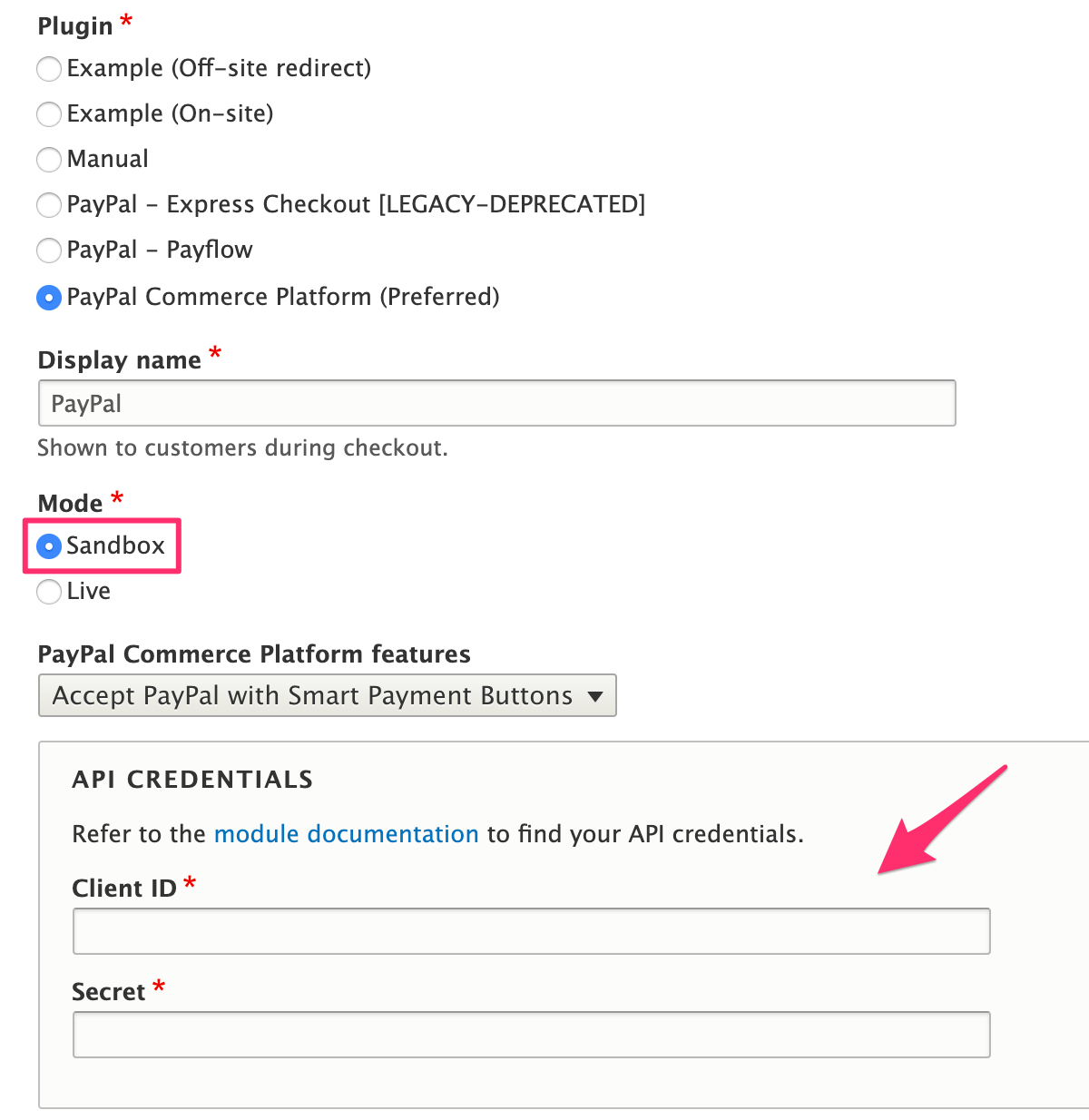
The Drupal Commerce Getting Started documentation for Payments provides instructions for adding a payment gateway in Drupal Commerce. You will want to copy the Client ID and Secret values from your PayPal App and paste them into the payment gateway configuration form. Specify the, "PayPal Commerce Platform features" option you want to use: Smart Buttons or accept credit cards. Additional setup states vary based on the selected feature.
Also, make sure to configure the payment gateway mode accordingly (i.e use the sandbox credentials for the "Sandbox" mode (See below).
Option 1: complete setup for PayPal with Smart Payment Buttons
See the PayPal Smart Payment Buttons Configuration documentation for additional gateway configuration options. You will also want to verify that the "PayPal Checkout" checkout flow exists in your configuration. If you're working with a fresh install of the Commerce PayPal module, it should be installed automatically. This checkout flow is automatically used when the payment is initiated from the cart page via the Smart Payment Buttons. In this scenario, you want the checkout steps to be reduced to the minimum.
If you do not see PayPal checkout flow listed on your Checkout flows configuration page, that means you are missing default configuration. You can create a new checkout flow to use with PayPal Commerce Gateway. "PayPal Checkout" should be selected as the Plugin, and you must use "paypal_checkout" as the machine name (ID) for the checkout flow. Otherwise, the checkout process will not function correctly. Typically, you will want to configure this checkout flow to include only Review, Completion message, Order Summary, and the custom "PayPal Checkout payment process" checkout pane.

Option 2: complete setup for credit cards
If you select the "Accept credit cards" option for the "PayPal Commerce Platform features" setting instead of the "Smart Payment Buttons" option, you will need to go through the Custom Card Fields onboarding flow.
- For a live integration, the merchant must go through the Custom Card Fields onboarding flow by going to through this link:
https://www.paypal.com/bizsignup/entry/product/ppcp
- For a sandbox integration, the merchant should go through this link (to mimic the real CCF/UCC onboarding experience):
https://www.sandbox.paypal.com/bizsignup/entry/product/ppcp
Note that for sandbox integration, you can provision CCF without going through the compliance filters by clicking "I'll do this later" whenever you get to the CIP verification with "Submit" button page.
You should also verify that the "Checkout flow" setting is not "PayPal Checkout" for all order types that provide the gateway as a payment option. The "PayPal Checkout" checkout flow is customized for use with Smart Payment methods.