
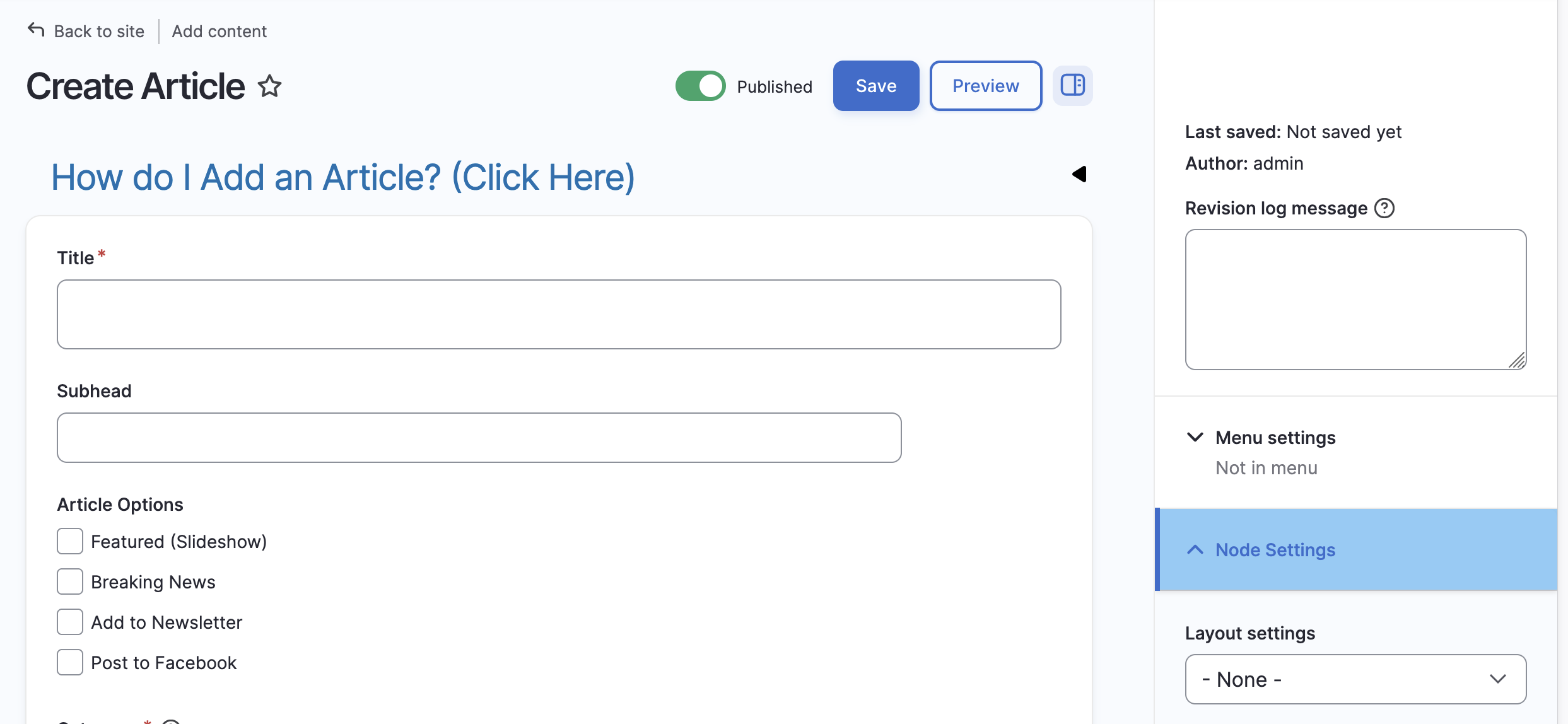
Publishing content with Surf CMS is quick and easy. Once you've created your first article, the process will become second nature.
Step 1: Log In
Log in to your website using your administrator, editor, or publisher username and password.
After logging in, you'll see the administrative toolbar across the top of the website. Click Shortcuts to access the most commonly used content management tools, including the option to create a new article.
 Step 2: Create Your Article
Complete as many of the following fields as needed:
- Headline – Enter the title of your article.
- Subhead (Optional) – Add a secondary headline if desired.
- Article Options (Optional) – Depending on your website's configuration, you may see options such as:
- Featured (Slideshow): Display the article in the homepage slideshow.
- Breaking News: Highlight the story in the Breaking News section.
- Add to Newsletter: Queue the article for your next newsletter.
- Post to Facebook: Automatically publish the article to your connected Facebook page.
- Section or Category – Select the section where the article should appear. You may choose more than one section if appropriate.
- Byline (Optional) – Credit the author of the article.
- Article Body – Type or paste the story into the main content area.
- Main Image (Optional) – Upload a featured image for the article.
- Photo Gallery (Optional) – Add additional images to create a gallery.
- PDF Attachment (Optional) – Upload a PDF to accompany the article when needed.
Step 3: Publish
When you're satisfied with the article, click Save in the upper-right corner of the page.
Surf CMS will automatically:
- Publish the article to the selected section(s)
- Resize uploaded images as needed
- Apply your website's formatting
- Display the article according to your chosen options
Additional Features
The right sidebar contains additional publishing tools that give you even more control over your content. Depending on your site's configuration, these may include:
- AI-powered writing and cleanup tools
- Scheduled publishing
- Paywall and premium content settings
- Search engine optimization (SEO) options
- Social media publishing
- URL aliases and redirects
- Revision history
Take a few minutes to explore these options—they can save time and help you get even more from Surf CMS.